

Configure ThingWorx Advisors
- Guide Concept
- Step 1: Configure Connection
- Step 2: Add User
- Step 3: Create a Model
- Step 4: Configure Asset Properties
- Step 5: Next Steps
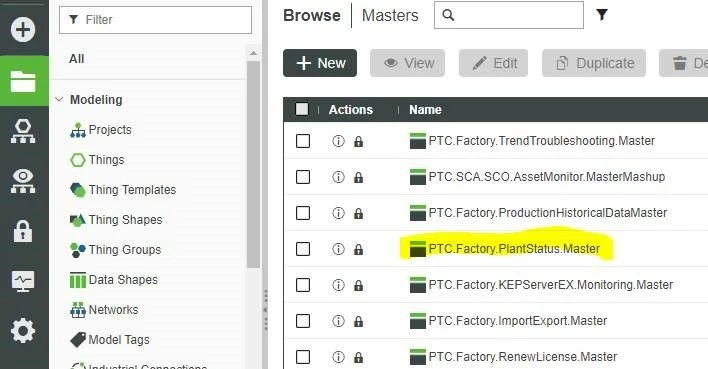
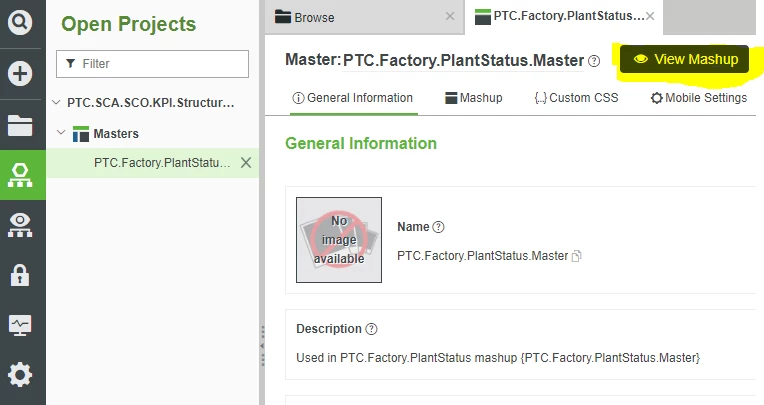
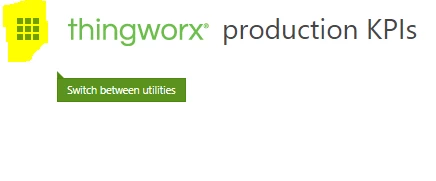
click-controls-advisor
3. Click the + icon to add a new Connection.
click-plus-add-connection
4. Enter my-kepware-connection in the Connection Name field.
5. Click the wand icon in the Application Key User Name dropdown and select Administrator.
6. Click the Application Key Expiration Date date picker and select a date a year in the future.
create-connection
7. Click Done to close the date picker, then click OK.
8. Information that you will enter in Kepware is shown, click Print Instructions to save.
connection-summary
NOTE: If no port is shown, use 80 for an HTTP connection or 443 for an HTTPS connection.
9. Click Close to close the connection inforamtion pop-up.
10. The information is always available by selecting the Key icon in Controls Advisor.
new-connection-saved
Configure Communication with Kepware
- Open ThingWorx Kepware Server configuration tool using either the desktop shortcut or the task bar icon.
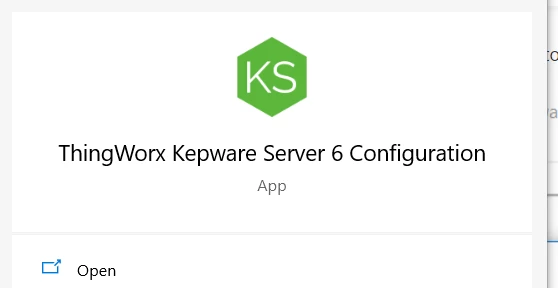
- Right click Project and select Properties to configure the connection with ThingWorx.
kepware-properties
3, Select ThingWorx in left panel. Under Connection Settings, update the Host, Port and Application Key to match your ThingWorx server.
/kepware-thingworx-settings
NOTE: All the required information is available in the "print" browser tab from the previous step. If no port number is shown, use 80 for an HTTP connection or 443 for an HTTPS connection.
4. Set Disable Encryption to No and Trust all Certificates to Yes.
5. Enter my-kepware-connection-GW in Thing name.
6. Click Apply, then OK.
7. Check Connected to ThingWorx is shown in Kepware.
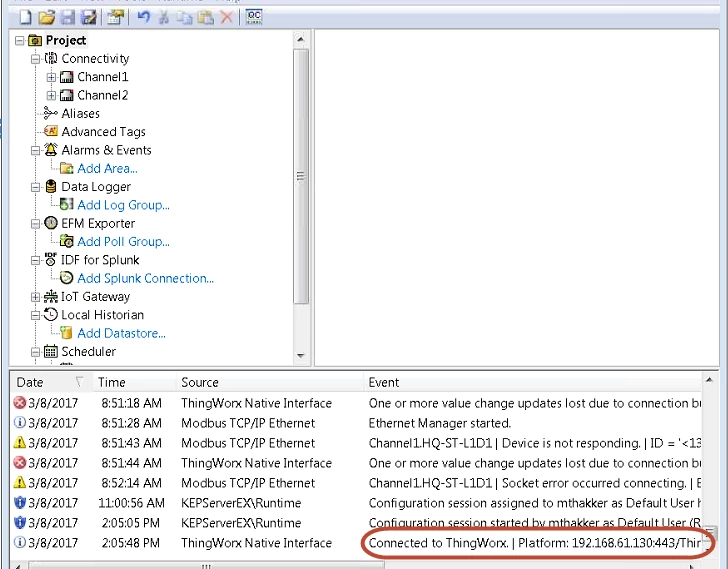
NOTE: The message displayed should say: Connected to ThingWorx.
Troubleshooting
If you are unable to make a connection from KEPServerEX®, try the following:
- Verify that the information you entered into the KEPServerEX Project Properties is exactly as displayed in the on-screen set-up instructions.
- If KEPServerEX is on a different machine than ThingWorx® ensure that your firewall is set to allow incoming connections on the port specified.
Step 2: Add User
In this part of the lesson, you'll create a User and modify permissions.
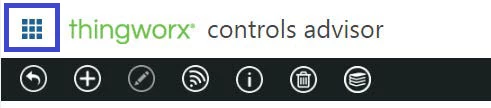
- Click the grid icon located in the upper left to switch to a different utility.
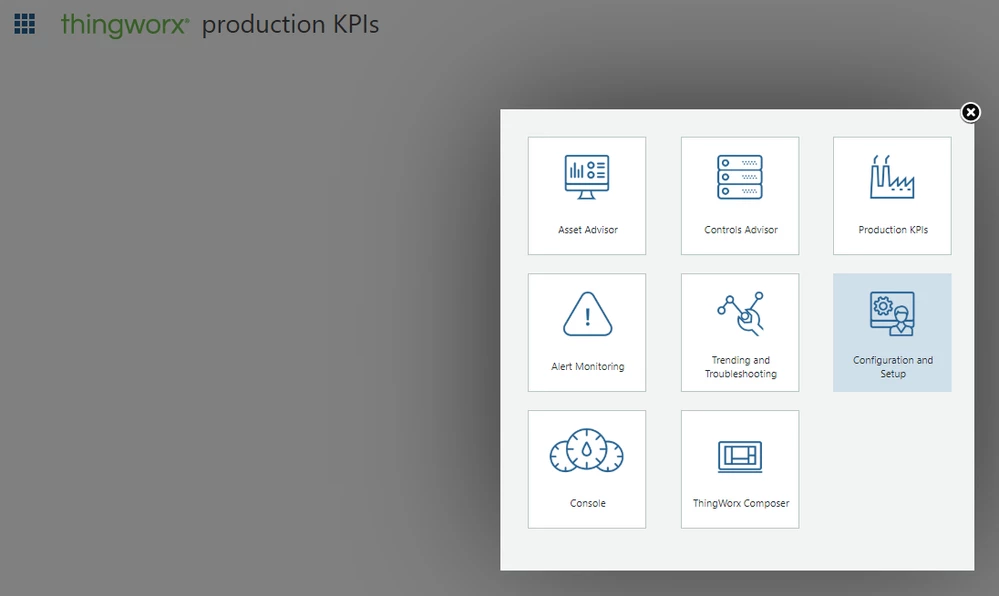
- Click the Configuration and Setup utility icon.
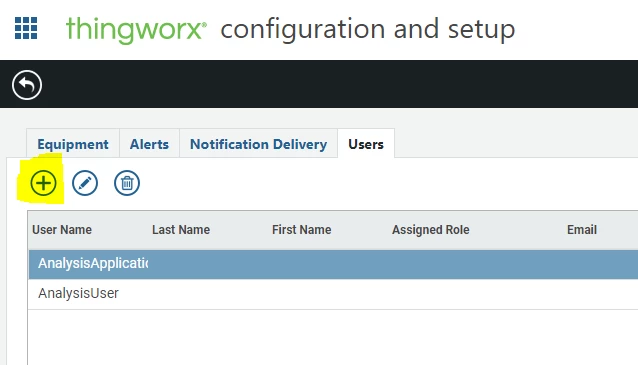
- Click the Users tab, then click the Plus icon to open the Create User pop-up.
- Enter a User Name that is at least 3 characters.
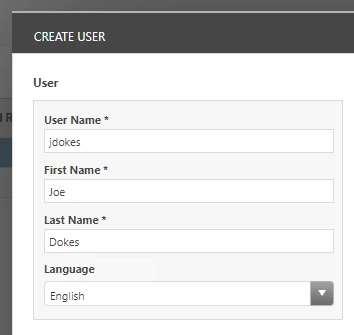
- Enter the required First Name and Last Name.
- Although they will not be used in this guide, enter the required Email and Work Phone.
- Enter Mobile Phone including + and country code, +1 for US mobile phones.
- Check the SMS Notification Preference.
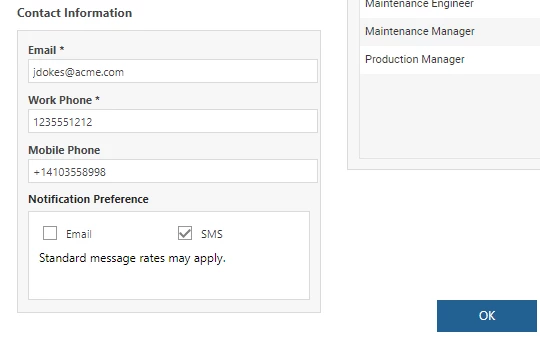
- Enter a Password of at least 14 characters, then re-enter it in the Confirm Password field.
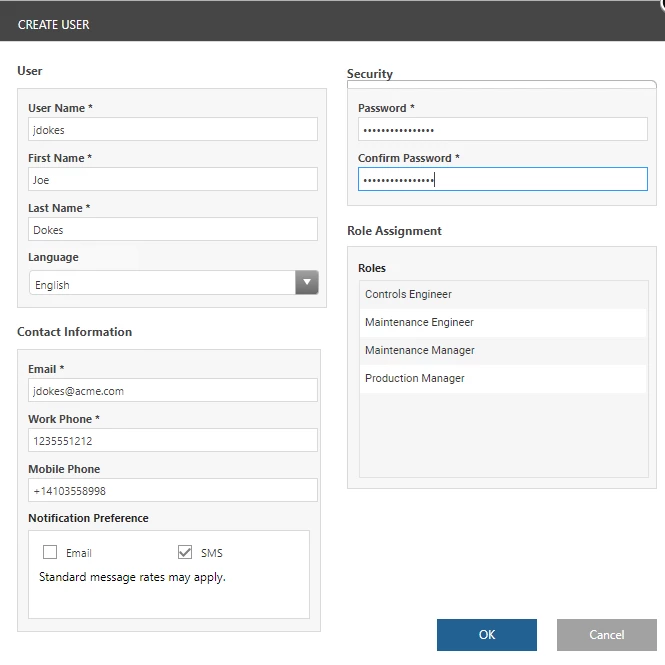
- Create a User for yourself as a Controls Engineer. This role gives access to all of the Advisors installed on the system. The other roles are given a subset of the Advisors, depending on the functionality they need to perform their jobs.
Step 3: Create a Model
In this part of the lesson, you will create a Model to store data.
- If Configuration and Setup is not already open, click the Utility Selector grid in the upper left, then click the Configuration and Setup utility icon.
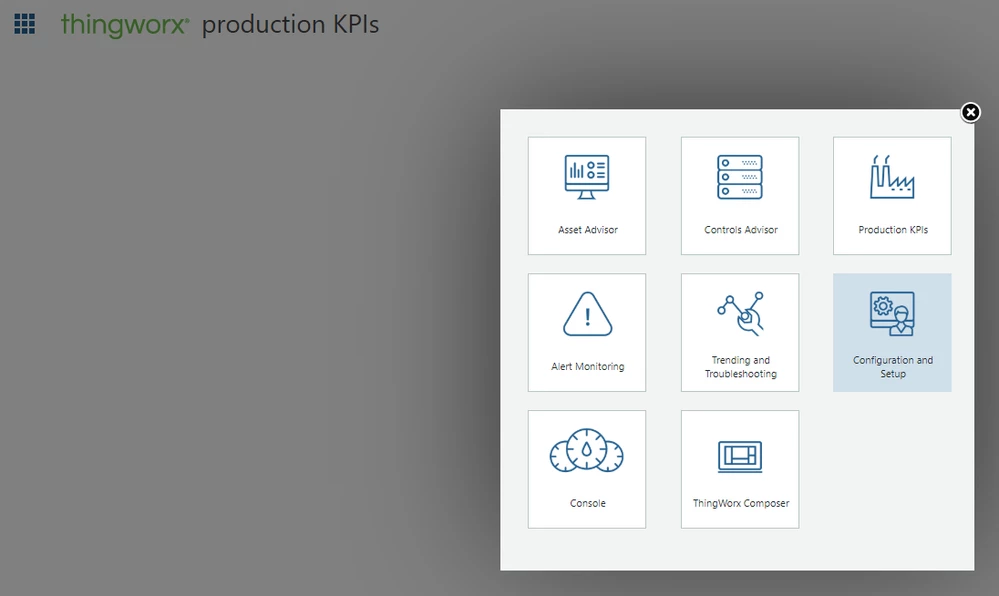
- Click on the Equipment tab.
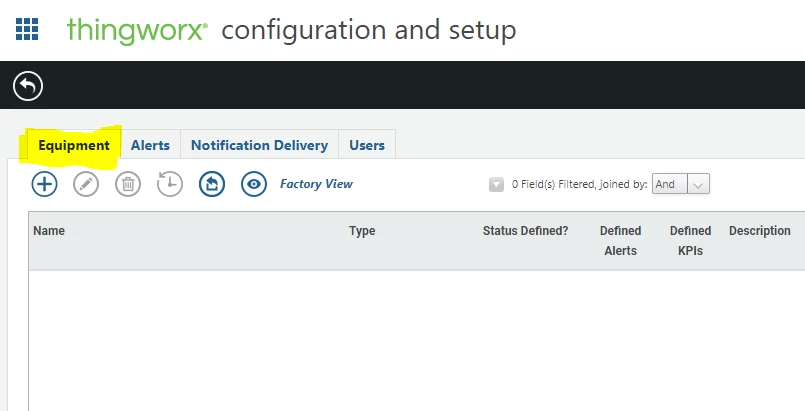
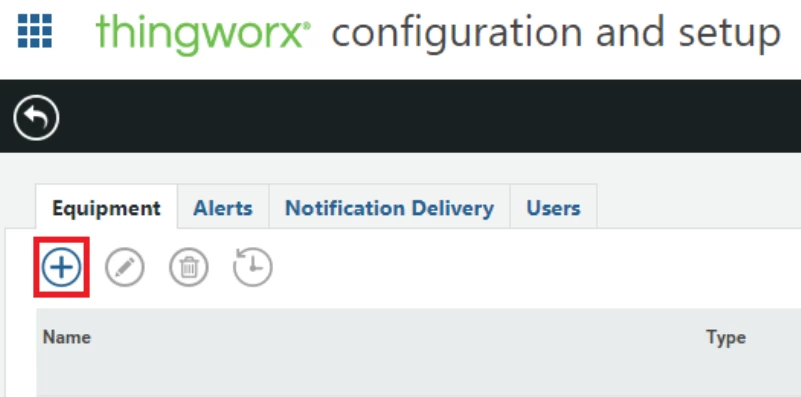
- Click on the + icon on the top left to add a new asset.
- Set the new resource to Asset and name it Asset1.
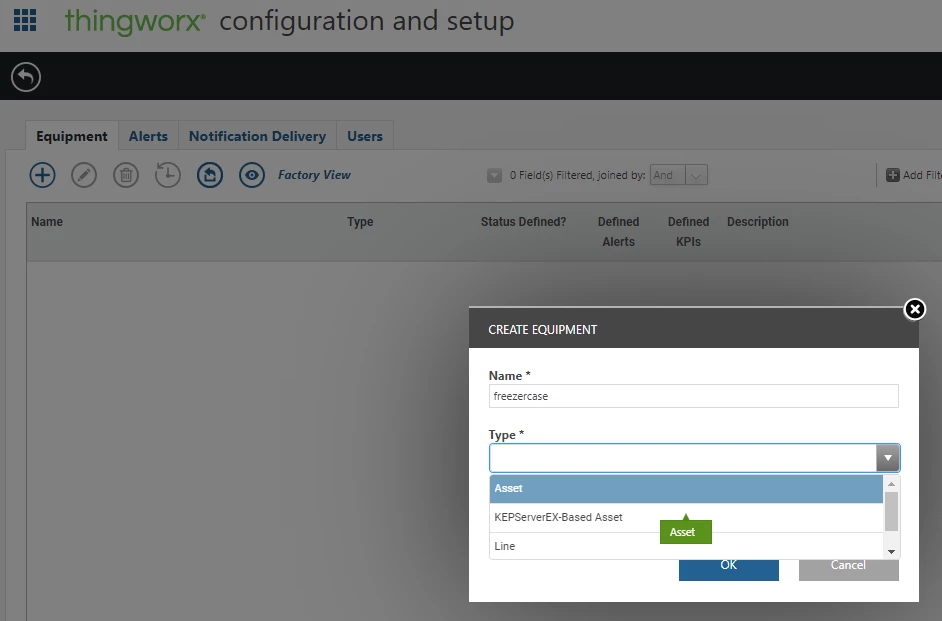
NOTE: You can also enter a description. - Create another resource, this time with the Type set to Line. Name it Station A.
- After both resources have been created, select Asset1 and then click the pencil icon to configure it.
- On the Asset Configuration Details page, locate the Related Lines table. Click the + icon to relate line to the asset.
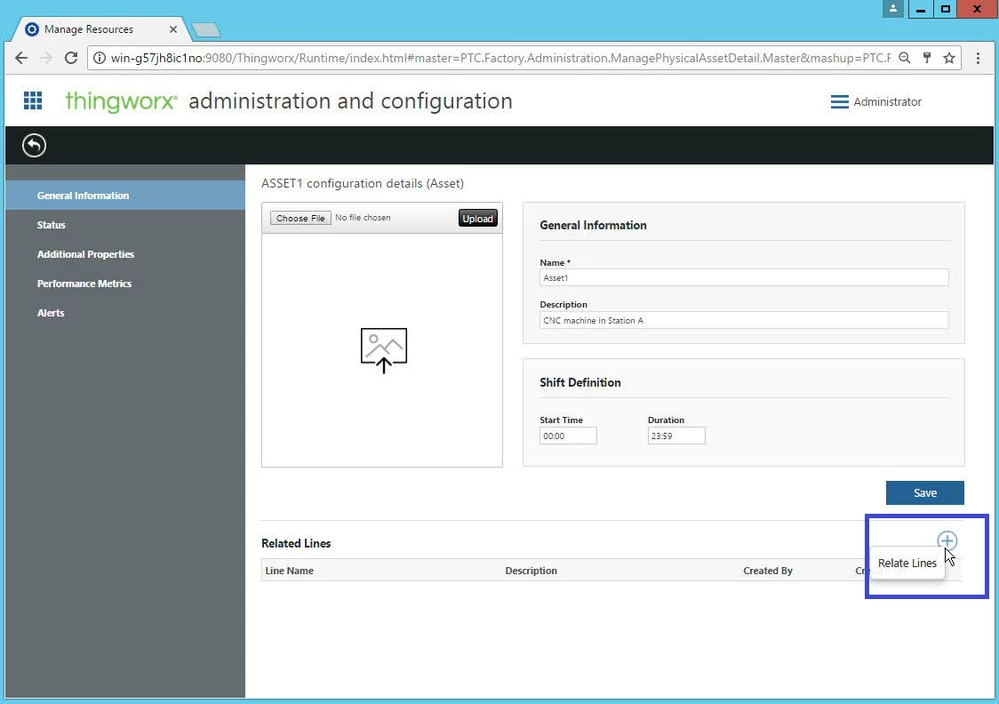
- Select Station A, then click Add.
Step 4: Configure Asset Properties
- From the Administration and Configuration page for Asset1, click Additional Properties located in the left-hand navigation pane.
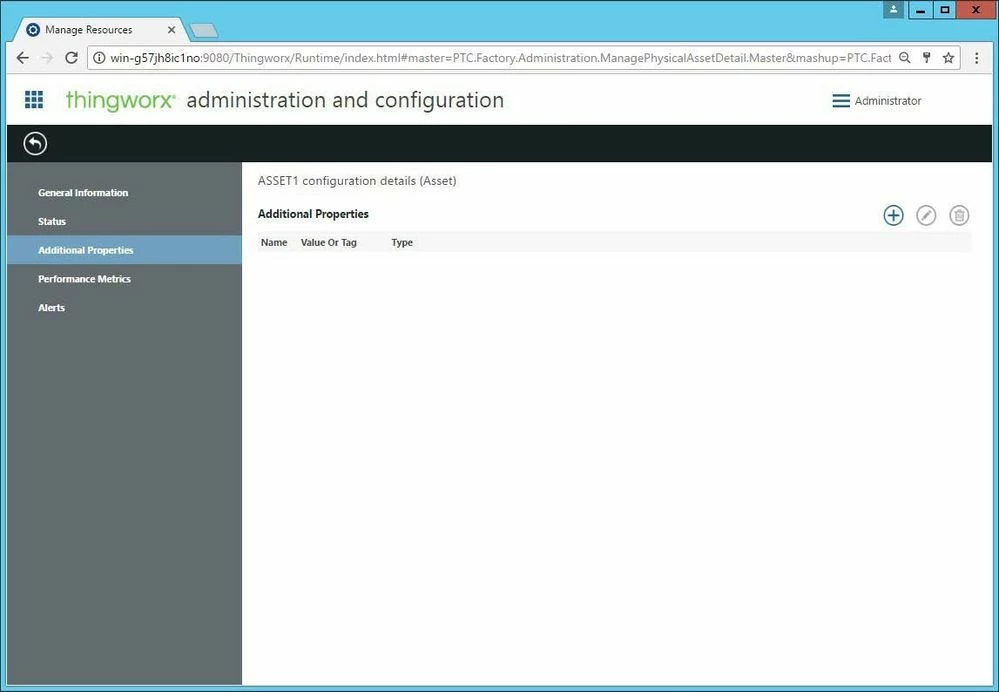
- Click the + icon to add a new property to the asset.
- Name the Property Temp.
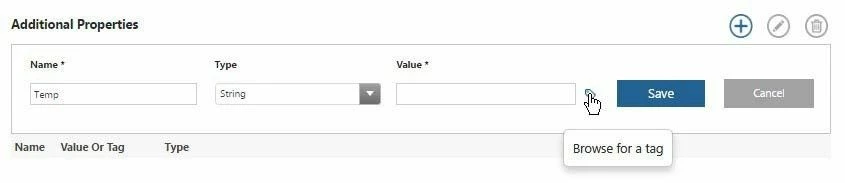
- Click the tag picker icon to associate this property in ThingWorx with a data tag from KEPServerEX.
- In the Resource Type drop-down, choose KEPServerEX.
- Select your server name (for this exercise, we use KEPServerEX.Local).
NOTE: You will see a hierarchical view of all tags available from your KEPServerEX instance. - In the left column, scroll down to Ch1 and click the triangle icon to expand it.
- Click Ch1.Asset1 to see the available Tags in the right column.
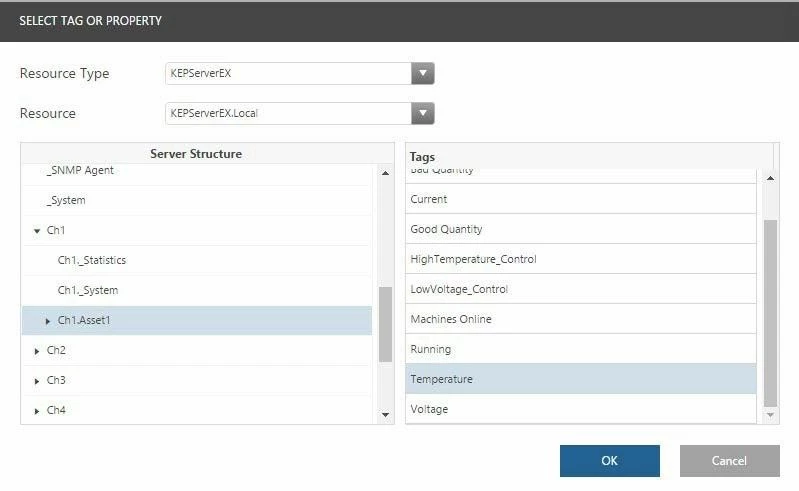
- Select Temperature, then click OK.
- Click Save to save this Property.
TIP: For additional practice, try to add a few more assets.
Step 5: Next Steps
Congratulations! You've successfully completed the Configure ThingWorx Advisors guide.
In this guide, you learned how to configure ThingWorx Advisors to connect to KEPServerEX and connect an asset.
Additional Resources
If you have questions, issues, or need additional information, refer to:
| Resource | Link |
| Community | ThingWorx Advisors Community |
| Support | Kepware Technical Support |
| Asset Advisor for service Home | ThingWorx Asset Advisor for service |