
7-Bedrock
March 20, 2024
Solved

Matchad Prime 9 appears to accept license file but shill shows the "upgrade" and "activate" buttons

  • March 20, 2024
  • 3 replies
  • 2444 views

I received 2 license files and I tried both. (No difference.)
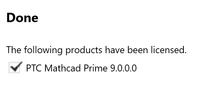
I configured the license (pointed to one of the 2 files) and I got this:
337306a7-7c66-42bd-a670-26985a9c76bd.png
But then when I run Mathcad, it acts like it has no license:
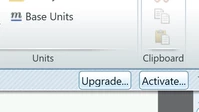
image (4).png

What's going on?

Best answer by JC_10760649

OK apparently the 3rd party vendor gave me a license file with a completely wrong MAC adress.
I gave him my wireless MAC address and the new license file worked.

What's ODD is that MathCAD NEVER warned that the license file was INVALID.

3 replies

23-Emerald IV
March 20, 2024

For installation and licensing problems, this is the right part of the forum: https://community.ptc.com/t5/Mathcad-Installation/bd-p/PTCMathcadInstall .


Is the MAC address of your PC always the same, or do you (e.g.) switch between Wireless (WiFi) and wired (LAN) networks?

The license is tied to only one MAC address. If you connect to the internet with the same modality that was used to license Prime, you should not get this problem.


Success!
Luc

7-Bedrock
March 22, 2024

I switch between wireless and wired all the time

23-Emerald IV
March 22, 2024

So, does that explain your problem? (=Can you correlate the 'not licensed' situation with one of the two internet connection modalities...?)

If yes, problem solved, mark this topic as solved.

If no, run down the list that Perez gave.


Luc


P.S. Oh, and before you investigate further:

When it says "activate" on that button, do you also get the "Created with Mathcad Prime Express" banner diagonally across your sheet?

And what about the result of

LucMeekes_0-1711130927431.png

does it result in 2.5, or does it show an error (complaining that that's a premium function?

14-Alexandrite
March 21, 2024

It sounds like you're encountering a common licensing issue where Mathcad is not recognizing your license file, even though it appears to be configured correctly. Here are a few steps you could try:


  1. Double-Check the License File: Ensure that the license file you are pointing to is indeed for Mathcad Prime 9.0.0.0 and it's located in the correct directory as specified by the software during installation.
  2. Run as Administrator: Try running Mathcad with administrator privileges. Right-click on the Mathcad icon and select 'Run as administrator'. This can sometimes resolve issues where the program doesn’t have the necessary permissions to access the license file.
  3. Check the License Manager Service: Make sure that the PTC License Manager service is running on your computer. 

  4. Firewall and Antivirus Software: Check if your firewall or antivirus software is blocking Mathcad from accessing the license file. Adding an exception for Mathcad in your firewall or antivirus settings may solve the issue.

  5. Reinstall the License Manager: Uninstall and then reinstall the license manager. This can clear out any errors that may have occurred during the initial installation.

  6. Contact Support: If all else fails, contact PTC Support for assistance. Provide them with the license files and any error messages you're seeing, as there may be an issue with the license files themselves or with how they are being interpreted by your system.

7-Bedrock
March 22, 2024

I switch between wired (in the office) and wireless (also in the office).
Most days I WFH and use wireless.