12-Amethyst
April 6, 2024
Solved

how to change the opacity of a part in assembly when toggled off

  • April 6, 2024
  • 3 replies
  • 3564 views

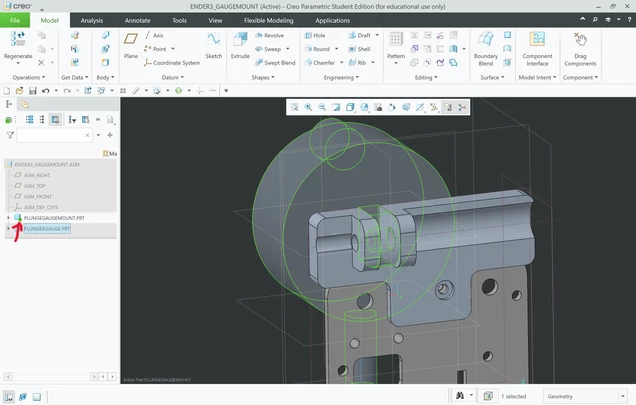
When editing a part in a assembly, it becomes very difficult to see the part that is toggled off. 

I'm using Creo 10

I've tried playing around with the system appearance settings, but I just can't find it. If there is an option to change the opacity at all. Having the part view stay in its original view would be ok too.

Any help is appreciated. 
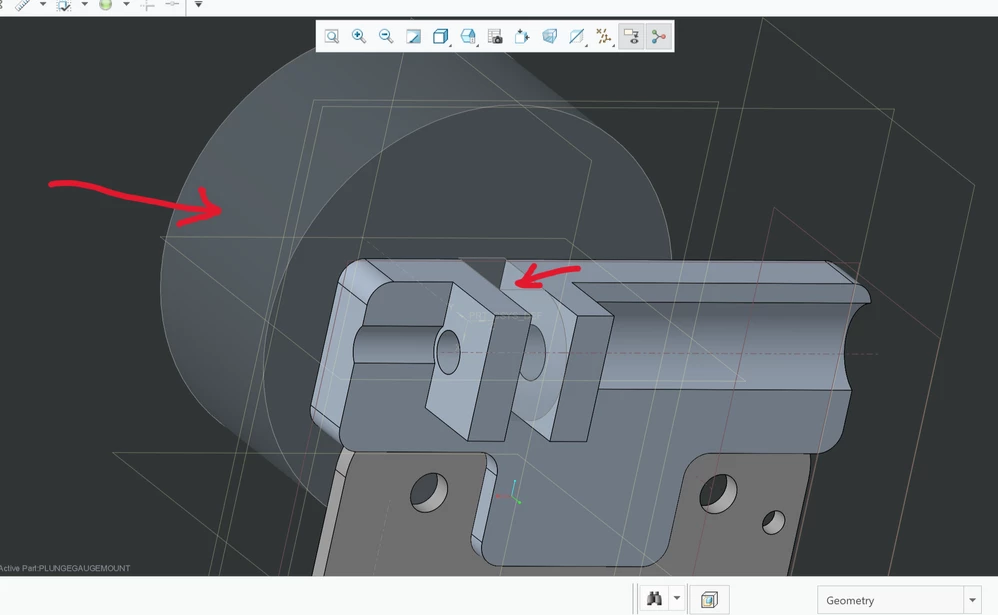
 

opacity.png

Best answer by MichaelPiotto

yes the activate tool in the model tree that will make the inactive parts transparent. The transparency is the same as 'component display style' so I found using the configuration style_state_transparency will change the opacity. Also I found the config dim_inactive_components to turn off transparency of inactivated parts. But thanks anyways for your time. 


ENDER3_GAUGEMOUNT (Active) - Creo Parametric Student Edition (for educational use only) 2024-04-07 11_00_28 AM.png

3 replies

tbraxton
22-Sapphire II
22-Sapphire II
April 6, 2024

The answer depends on how the appearance of the component in questions was changed. When you open the part in question in part mode what does it look like? You might have to change the appearance in the part. If you have set the component to be transparent in assembly mode, then you can just revert to the default display style assuming you have not modified and saved it.


Check the display styles available in the assembly and see if using one of them resolves the issue. If not, then check the appearance of the component in part mode.


tbraxton_0-1712433044482.png


You also have direct control over component display in assembly mode using this element of the UI. If this is not working then you need to provide more information.


tbraxton_1-1712433114412.png


12-Amethyst
April 6, 2024

I'm referring to using the "activate" tool in the model tree, which will allow me to edit the selected part's features. There is a setting that disables transparency in Appearance->Model Display under "Shaded Model Display settings", but this also disables transparency in "component display style"(in your first screen shot). 

tbraxton
22-Sapphire II
22-Sapphire II
April 7, 2024

I am still not clear on what you are seeing. I have made a guess on your latest response. I am following your command sequence in Creo 9 (maybe it has changed in Creo 10). I am not able to find the below sequence which you noted in the previous post:

Appearance->Model Display


When you activate a part in assembly mode you will not have access to the component display style command which can only be used in assembly mode. See the below example of activating a part in an assembly. If this is what you are experiencing, then it is not an error or bug. When in part mode there are no components available for selection.


Note that temporary shade is available.


Screen shot from Creo 9 with a part activated within an assembly and my best guess at where you are in the UI. if this is not accurate then please clarify exactly what you are seeing with screen shots and command sequences.


tbraxton_0-1712491749042.png


Community Moderator
April 12, 2024

Hello @MichaelPiotto


It looks like you have some responses on your topic. If any of these replies helped you solve your question please mark the appropriate reply as the Accepted Solution. 

Of course, if you have more to share on your issue, please let the Community know so other community members can continue to help you.

Thanks,
Community Moderation Team.

1-Visitor
April 12, 2024

Hi,


The quickest way is to use the mini-toolbar - that pops up when you click on the part, with two commands - transparency and component display style


BR84_1-1712910295437.png


BR84_2-1712910435663.png


Cheers!