

Install Rockwell Connected Components Workbench
- 0 replies
- 23669 views
- Translate All
- Guide Concept
- Step 1: Learning Path Overview
- Step 2: Signup
- Step 3: Download
- Step 4: Install
- Step 5: Next Steps
Install a Connected Components Workbench to program an Allen-Bradley PLC
Guide Concept
In this guide, you'll install Rockwell Automation's Connected Components Workbench, which facilitates programming of an Allen-Bradley PLC.
You'll learn how to
- Create a Rockwell Automation Account
- Download software from Rockwell Automation's website
- Install Connected Components Workbench
NOTE: The estimated time to complete this guide is 60 minutes
Step 1: Learning Path Overview
Welcome to the Rockwell Automation Learning Path!
This first guide explains the steps to get up and running with Rockwell's Connected Components Workbench, a software program to facilitate connecting to and configuring Programmable Logic Controllers, i.e. PLCs.
PLCs are commonly used in factories and other automation scenarios to control minor aspects, such as turnning particular devices on or off based on a particular situation.
Note that you don't necessarily have to run through this guide as part of the Learning Path. If you simply want to learn how to install Connected Components Workbench, this guide can still be useful to you.
But assuming you are using this guide as part of the Rockwell Automation Learning Path, then the first elements will be to install your software, i.e.:
- Connected Components Workbench
- ThingWorx Kepware Server
- ThingWorx Foundation (for Windows)
You'll then connect an Allen-Bradley PLC to Connected Components Workbench and then to ThingWorx Kepware Server.
Next, we'll propogate that information further from ThingWorx Kepware Server into Foundation.
Finally, we'll use Foundation's Mashup Builder to construct a GUI which can both receive and send information to the PLC.
We hope you enjoy this Learning Path.
Step 2: Signup
To access Rockwell Automation software, you first have to create an account on the Rockwell Automation website.
- Go to the Rockwell Automation site.

- In the top-right, click the "person symbol" for Account.

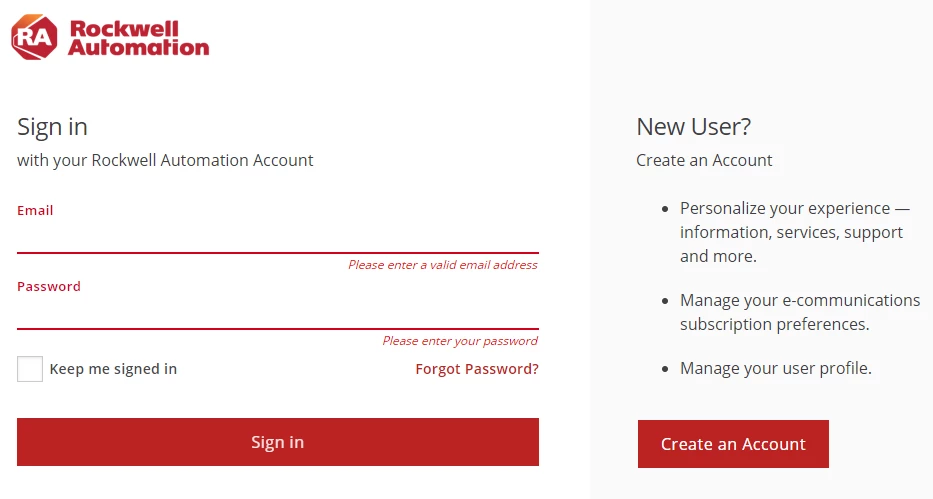
- On the right, click Create an Account.
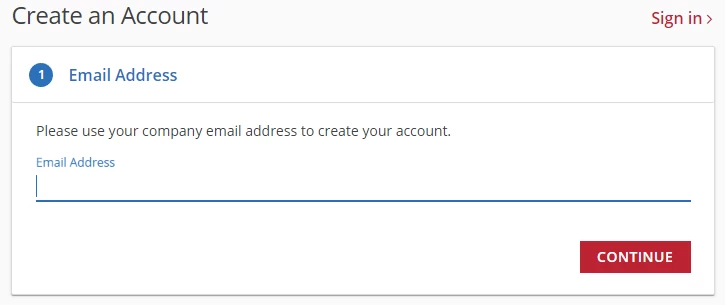
- Enter a valid email address which you control and click Continue.
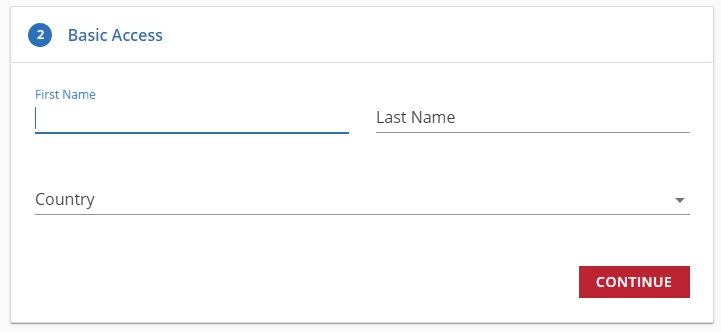
- Enter your first and last names, your country, and click Continue.
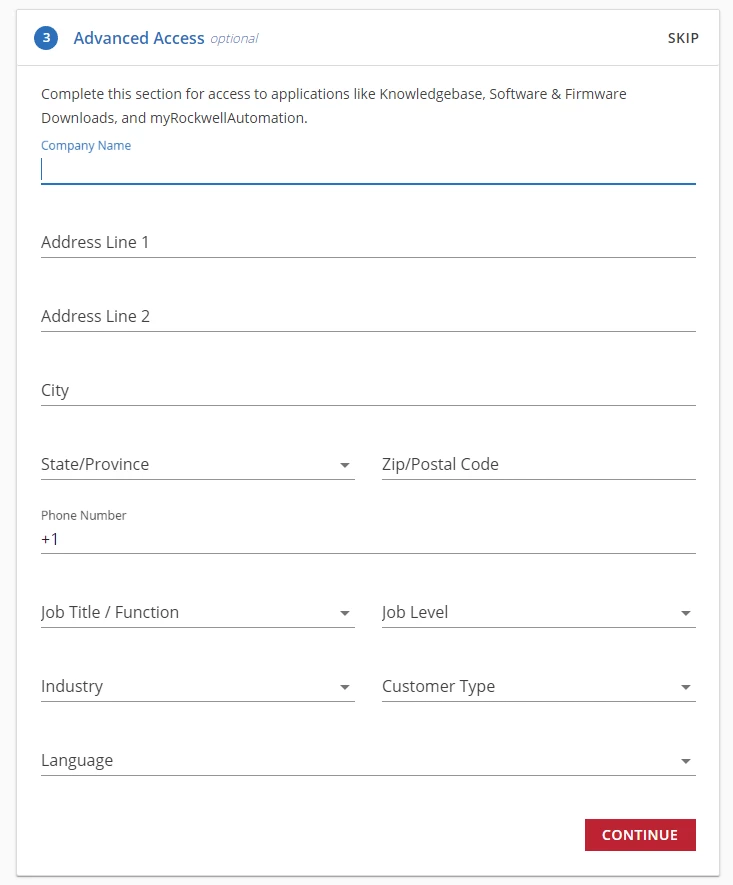
- Enter your job information and click Continue.
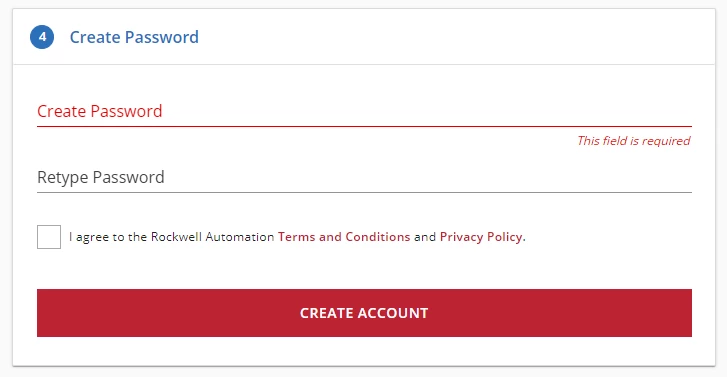
- Enter and re-enter a password, check the EULA agreement box, and click Create Account.
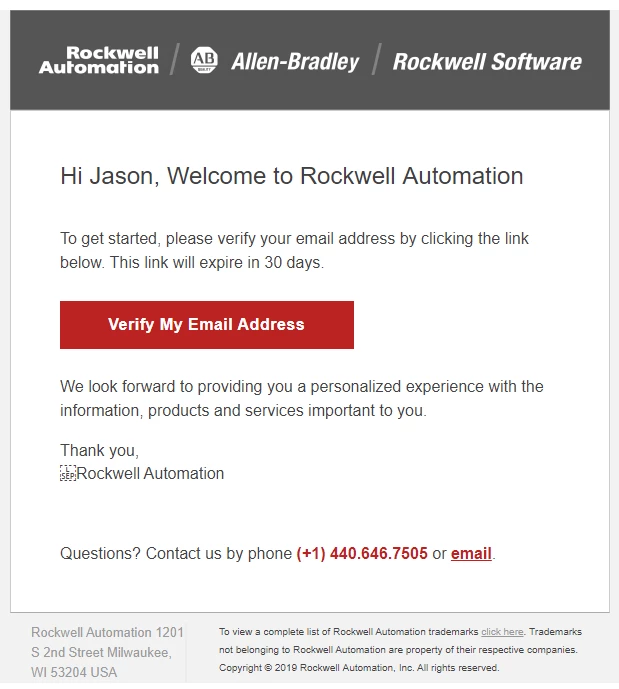
- Rockwell will send a verification email to the address you previously entered.

- Locate the email and click Verify My Email Address.
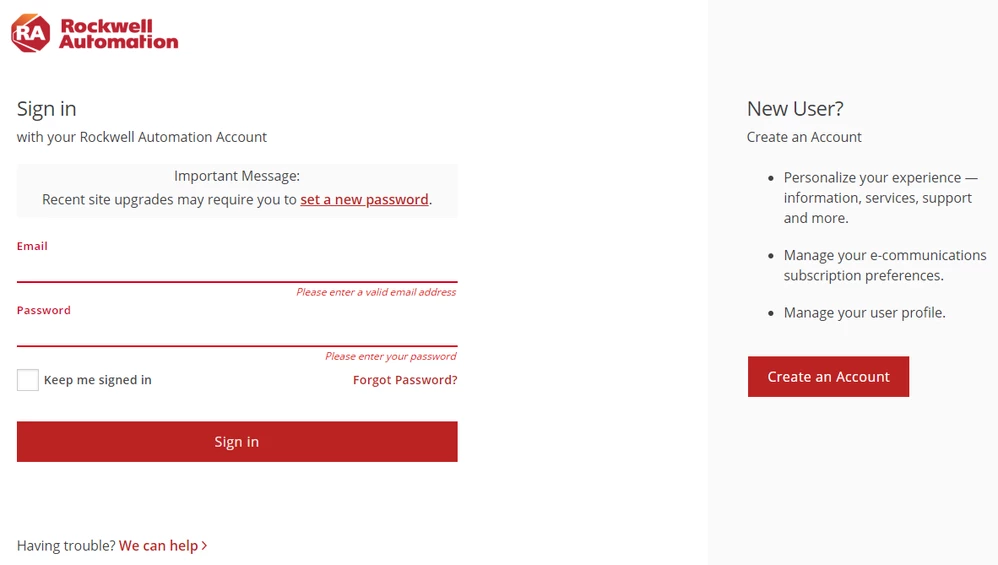
- A new browser tab will open with your verification; click Proceed to Sign In.

- Sign-in with your verified email address.
Step 3: Download
Now that you have a verified Rockwell account, you will download Connected Components Workbench.
This download is a little different in that it actually has two parts.
You have to download both, and then run a built-in combiner to get access to the actual installation files.
- Go to the Connected Components Workbench download site.
- Click Select Files.
- On the pop-up, check Connected Components Workbench and click Downloads.
- On the new pop-up, click DOWNLOAD NOW.
- On the download Software End-User License Agreement page, click Accept and Download.
- Move the download into a separate folder.
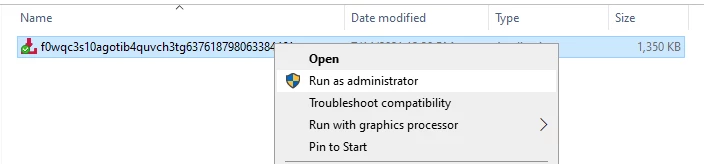
Right-click on the download and select Run as administator.
- Agree to let the program make changes to your computer.
- Agree to let the program make changes to your computer.
- The download-manager will then begin the download of the actual software.
- Click Close when the download has completed.
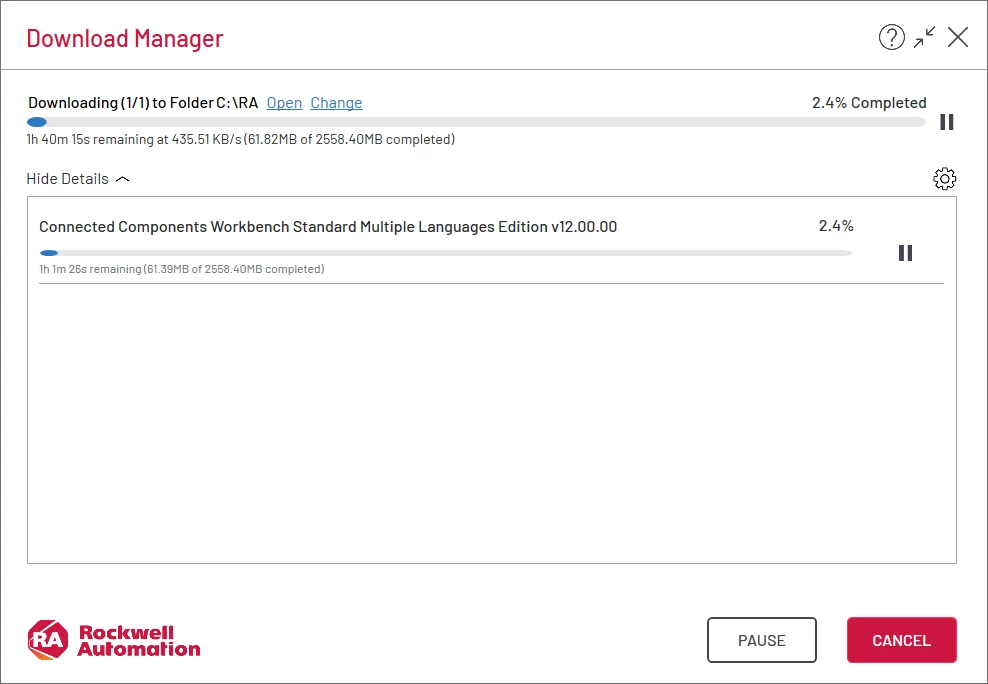
- Click Close when the download has completed.
- Notice that there is now a new C:\RA\CCW folder.

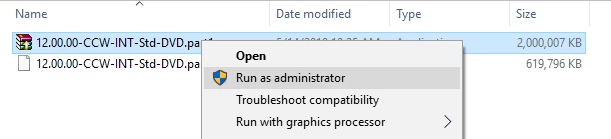
- Right-click on part1.exe and select Run as administator.
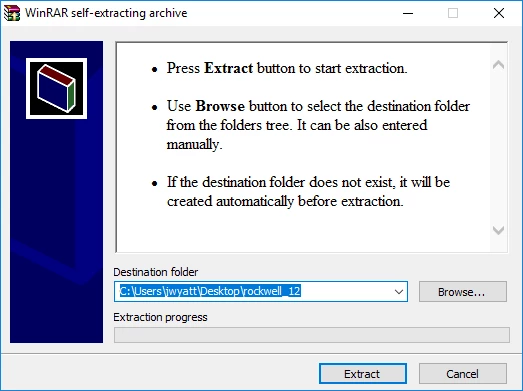
- On the WinRAR self-extracting archive window, click Extract.
- Notice that there is now a new "DVD" folder.

- Navigate into the "DVD" folder.
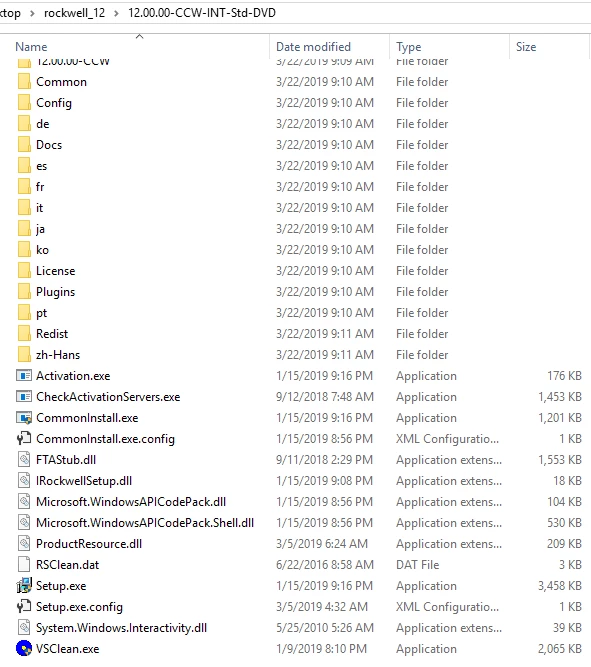
- Notice the Setup.exe file, which will be used to install Connected Components Workbench.
Step 4: Install
Now that you have Connected Components Workbench properly downloaded and extracted, you can begin the installation.
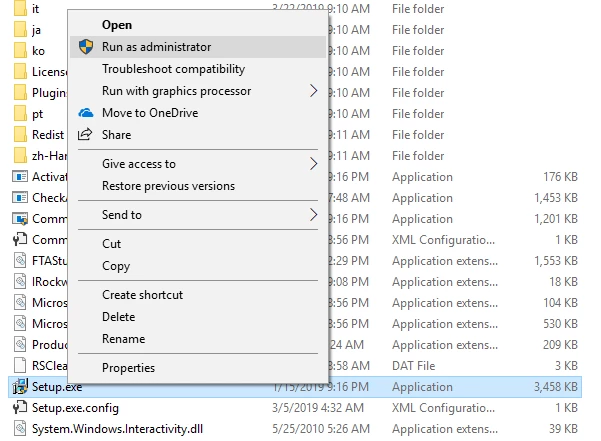
Right-click on Setup.exe and select Run as administrator.
Click Yes to allow the program to make modifications to your computer.
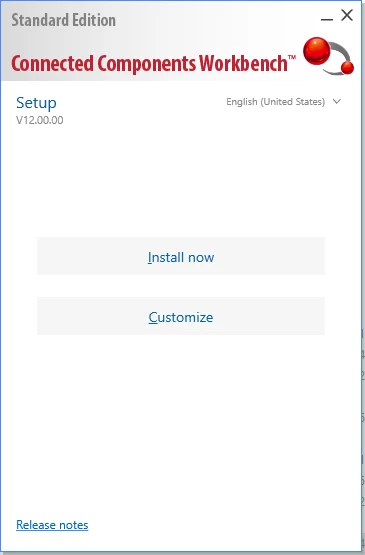
- Click Install now.
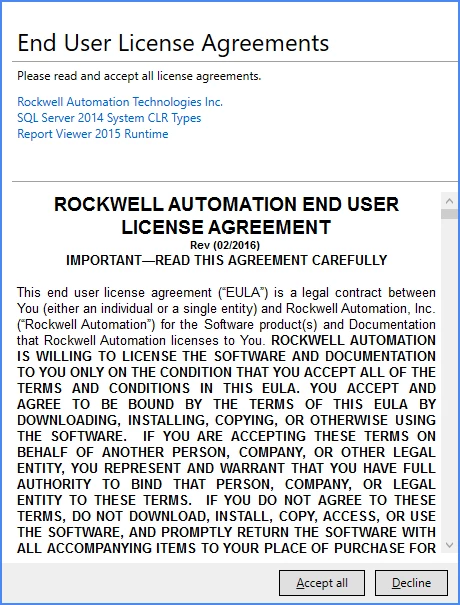
- On the EULA screen, click Accept all.
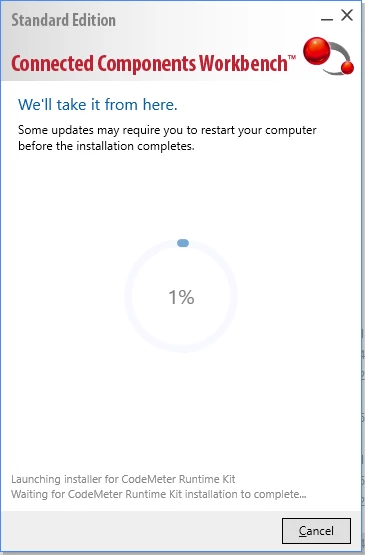
Allow the installer to run to completion.
This may take ~30 minutes..
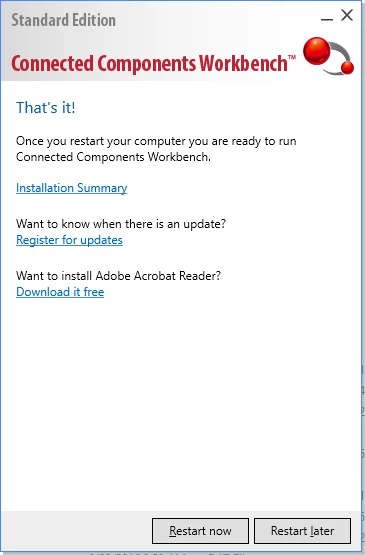
- Click Restart now to reboot and complete the installation.
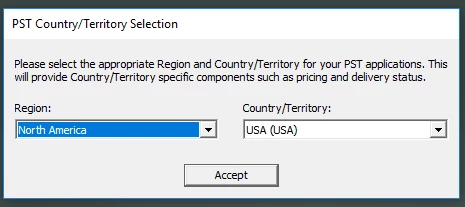
- After restarting, you may be asked to set your Country/Territory.
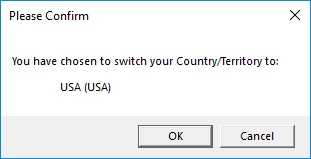
- Click OK to confirm.
- In the Windows "Start" menu, navigate to and expand the Rockwell Automation folder.
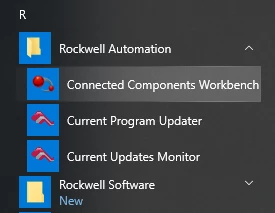
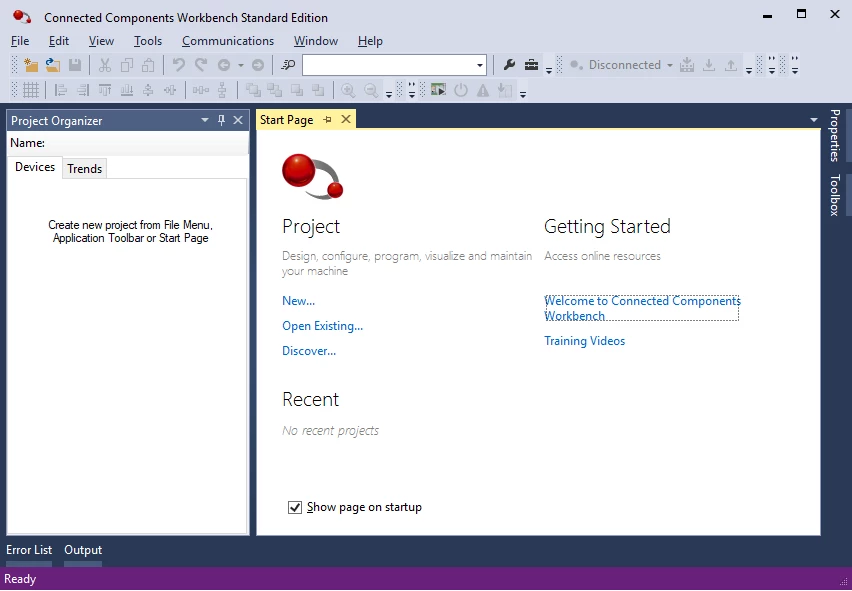
- Click Connected Components Workbench.
Step 5: Next Steps
Congratulations! You've successfully completed the Connected Components Workbench installation guide.
In this guide, you learned how to:
- Create a Rockwell Automation Account
- Download software from Rockwell's website
- Install a Connected Components Workbench
The next guide in the Using an Allen-Bradley PLC with ThingWorx learning path is Install ThingWorx Kepware Server.
Learn More
| Capability | Resource |
| Manage | Install ThingWorx Kepware Server |
Additional Resources
For additional information on Rockwell:
| Resource | Link |
| Documentation | Rockwell Literature Library |
| Documentation | Connected Components Workbench |